Limited time
Up to 30%Off
Grab Now
Limited time

How do I connect WordPress tables with the Google Sheets API?

You connect WordPress tables with the Google Sheets API by creating a Google Cloud project, enabling the Google Drive API and Google Sheets API, creating a service account with a JSON key, and pasting that key into the Google Spreadsheet settings tab of wpDataTables. Once connected, your Google Sheets sync automatically and you can build tables from private sheets.

How do I connect my Google API service account to wpDataTables?

You connect your Google API service account by following the step-by-step instructions below, from creating a Google project to validating the service account data in wpDataTables.

Say no more to cache issues! It is possible to automatically sync your already created, published and shared Google Sheets in wpDataTables. Furthermore, you can create WordPress tables with your Private Sheets as well.

To enable this feature, please follow the instructions below on how to connect WordPress tables with Google Sheets API.

How do I create a new project in the Google API dashboard?

The first step is to access the Google API dashboard. When you access it, please click on the “Select a project” button as shown in the image.

After clicking on the “Select a project” button, the pop-up window will show up. What you need to do next is to click on the “New project” button in the top right corner as it is shown on the image on the left.

Now, you need to give your project a name (for this demo we will name it “Connect to Sheets API“). When you finish, please click on the “Create” button.

After you click on Create, you’ll see the project being created in the top right. Once it’s complete, click on Select Project in that window. Next, we’ll need to enable APIs from the Library.

How do I enable the Google Drive API and Google Sheets API?

You enable both APIs from APIs & Services > Library by opening each API and clicking “Enable”.

Next, you need to enable the Google Drive API. Scroll down a bit and click on the Google Drive API section as is shown in the image on the left, or use the Search bar on the top to search for the Google Drive API.

Click on the “Enable” button.

Enabling the API, you’ll be taken to its Details page. We will need to enable one more API, so click on the Library menu item again.

Then, you need to enable Google Sheets API. Scroll down a bit and click on the Google Sheets API section as is shown in the image on the left, or use the Search bar on the top to search for the Google Sheets API.

Click on the “Enable” button.

After that, you will be redirected to the API Details. Even though it’s highlighted, click on the Enabled APIs & services menu item.

Scroll down to verify that both Google Drive API and the Google Sheets API are on the list.

How do I create a service account for the Google Sheets API?

You create a service account from Credentials > CREATE CREDENTIALS > Service account, then give it a name, an ID and the Basic/Editor role.

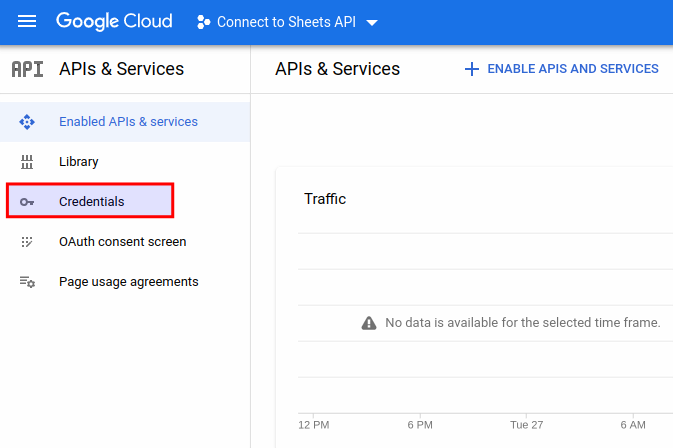
To create credentials for this project, please click on the “CREATE CREDENTIALS” button.

In the drop-down menu, please choose “Service account” as is shown on the image on the left.

Then, you will need to set your Service account name (in our case, we set ‘wpDataTables connection to Sheets API’). The Service account ID is automatically generated, but you can change it (we set it to be ‘johns-wpdt-sheets’).

When you’re done, click on Create and Continue

When you finish with Service account details, you will need to select a role for this account. Please click on “Select a role” and in the drop-down menu choose Basic/Editor as is shown on the left image.

When you finish with the role, please click on the “CONTINUE” button.

To finish creating a service account, please click on the “DONE” button.

The Grant users access to this service account is optional, and in order for Google Sheets API to work with wpDataTables, you don’t need to configure this since you’ll be sharing your sheets with the credentials created previously. More on this will be shared in the Instructions how to create Google Sheets from Private Google Sheets.

Nice job! Your service account is now created.

Please click on your service account like on the image on the left, to get JSON data.

How do I create a JSON key for the service account?

You create a JSON key from the KEYS tab of your service account by choosing ADD KEY > Create new key and keeping the JSON key type.

In the drop-down menu, please choose option “Create new key”

The popup modal will show up, there you will choose key type before creating a private key for your service account. The key type needs to be JSON (it is already selected so just leave it as is) and then, click on the “CREATE” button.

Where do I paste the Google service account data in wpDataTables?

After creating the private key for your service account, the file will be downloaded to your computer in JSON format. Close the modal that comes up, and click on the file to open it.

The file will be in the format shown in the image on the left. You will need to copy all this data from the file.

When you copy data from that file, please go to your server where wpDataTablesis installed:

1. Click on “Settings” in the wpDataTables admin menu,

2. switch on tab Google Spreadsheet settings.

You will need to paste data that you copied from the JSON file in the field “Google service account data”.

When you finish,  please click the ‘Validate & Save’ button under this field.

If everything is done correctly, your Google service account email will be shown. It will be used for connection with your published and shared sheets.

By clicking on the “Remove account” button you can remove this account from wpDataTables anytime.

How do I create tables from private Google Sheets?

You create tables from private Google Sheets by sharing each sheet with your Google service account email (without notifying people) and then pasting the sheet URL into wpDataTables.

When you finish all steps needed for creating your Google service account email, you will be able to create tables from Private Sheets (not published or shared with everyone).

Below are instructions on how to do that.

Step 1

Copy the Google service account email from wpDataTables Google Spreadsheet settings.

Step 2

Go to your Google spreadsheets that are not published or shared with everyone and click on the “Share” button.

Step 3

In the field “Add people and groups” insert/paste your Google service account email that you copied from wpDataTables settings. When you finish, click “Save” button.

Step 4

After that, uncheck the option “Notify people” and then click on the “Share” button.

Now this private sheet is shared only with your Google service account email and you will be able to create a table in wpDataTables just by providing a sheet URL from the browser when you Create a table from Google Spreadsheet.

Please note, you don’t need to publish it on the web or to share it with everyone.

You can dynamically filter the table by using placeholders as predefined filtering values.

Where can I learn more about creating tables from Google Sheets and other sources?